
Shopify Flow for Plus Merchants: 10 Automations That Save Hours Every Week
Shopify Plus stores deal with a steady stream of routine tasks. Staff tag wholesale orders, check stock, review flagged payments, and update collections by hand. Each task takes a few minutes. Together, they take hours every week and leave room for mistakes.
Shopify Flow, the free automation app built into Shopify, can take over much of this work. It is open to most Shopify plans, but Plus merchants tend to gain the most from it, since they run more stores, sales channels, B2B catalogs, and Launchpad events.
Workflows can be added at any stage, and each extra channel or catalog adds rules that staff would otherwise track by hand, so the time savings grow with the size of the operation. This article covers ten workflows that close common gaps, the development work behind more advanced setups, and the mistakes that most often cause workflows to fail.
How Flow Workflows Are Built
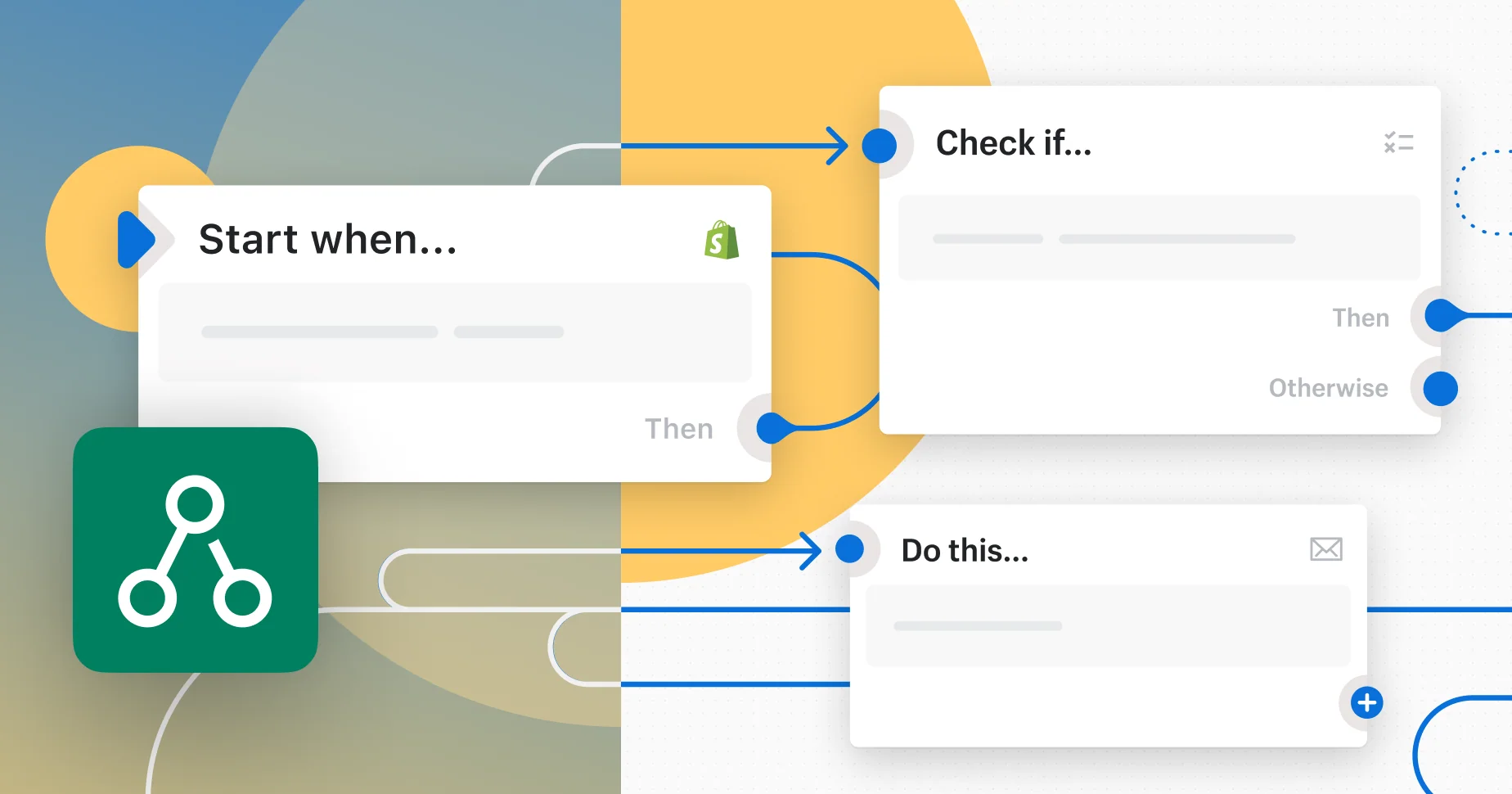
Every Flow workflow follows the same logic, and knowing it makes the ten examples below easier to set up. A workflow reads like a simple rule: when something happens, and certain things are true, take these steps.
- Triggers are store events, such as Order created, Inventory quantity changed, or Scheduled time.
- Conditions check the data, such as the order total, tags, ship-to country, or risk level.
- Actions carry out the result: add a tag, hold a fulfillment, send an internal email, or pass data to another app.
Flow also has a template library, so many of these workflows can start from a ready-made version. The Recent runs log records each workflow that fired and the path it took. This makes it much faster to find and fix problems.
Each condition can only check data that the store records in a consistent way, so tag rules and product data need to be in order first. Stores built or moved through Shopify Plus website development services often have this structure and their core workflows set up before launch.
10 Automations Worth Setting Up
The workflows below cover five areas: risk, stock, customers, shipping, and reports. Stores new to Flow will see the fastest return by starting with the two or three tasks that take the most staff time today.
1. Hold High-Risk Orders for Review
A chargeback costs more than the sale itself. The store loses the product, the shipping cost, and the dispute fee, and staff spend time gathering proof. A workflow on the Order risk analyzed trigger can check for a high risk level. If it finds one, Flow holds the order, adds a “fraud-review” tag, and emails the support team.
Automatic cancellation is not a good idea here. Shopify’s fraud check sometimes flags real buyers, and a short manual review keeps those customers from a bad experience.
2. Send Low-Stock Alerts to Purchasing
When a best seller runs out, the store loses sales and, often, customers. A workflow on the Inventory quantity changed trigger can compare the new stock level with the old one. It then sends an alert only when stock first falls below a set level. The email can list the product, the variant, and the units left.
This comparison step matters. Without it, the alert fires on every sale below the limit, and the purchasing team soon stops paying attention.
3. Hide Sold-Out Products and Restore Them on Restock
Flow’s template library includes two workflows for this task. The first hides a product once every variant reaches zero; the second shows it again when stock returns. Shoppers no longer land on items they can’t buy.
High-traffic product pages need more care. Removing a page from the Online Store can affect its search rankings, since the URL may stop working for a while. For these products, a “back-soon” tag and a restock notice keep the page live while still being clear with shoppers.
4. Tag High-Value Customers Automatically
Spotting top customers early helps both marketing and support teams. On the Order created trigger, a workflow can check how much the customer has spent in total. If the amount passes a set figure, Flow adds a “VIP” tag.
The tag then serves several uses. Customer segments in the Shopify admin can target these buyers with their own campaigns. Support staff can also see the tag on the customer profile before they reply.
5. Route B2B Orders to Account Managers
Plus stores that sell wholesale through Shopify’s B2B features often handle trade and retail orders in the same admin. Without clear separation, trade orders can wait longer than agreed. A workflow can check whether an order comes from a company account. If it does, Flow adds a “wholesale” tag and notifies the right account manager.
Some teams add a second rule for large trade orders that need a credit check or special packing. These orders then get their own alert, so staff don’t have to search the order list for them.
6. Put Express Orders First
Express orders placed in the same queue as standard ones often miss their delivery dates. A workflow can check the shipping method name, for example whether it contains “Express” or “Next Day,” and add a “priority” tag.
Most logistics partners and shipping apps can read Shopify order tags. As a result, the warehouse sees priority orders at the top of the pick list with no manual reminder.
7. Flag Address Issues Before Fulfillment
Some carriers don’t deliver to PO boxes, and some countries need extra customs details. Flow can scan the shipping address for “PO Box,” compare it with the chosen shipping method, and hold the order with a tag if the two don’t match.
Fixing the issue at this stage usually takes one short email to the customer. Fixing it after a failed delivery takes far longer and often ends in a refund.
8. Manage New Arrival Tags
A “New” badge helps shoppers find recent products, but keeping it current by hand takes time. A workflow on the product creation trigger can add a “new-arrival” tag. A collection based on that tag then updates itself, and most product label apps can read tags to show a badge on the storefront.
A second workflow completes the setup. It runs daily on the Scheduled time trigger, finds products that have had the tag for more than 30 days, and removes it. The collection stays accurate with no manual cleanup.
9. Report Delayed Orders Weekly
In a busy store, orders that stay unfulfilled for several days are easy to miss. A scheduled workflow can run every Monday morning, pull orders that have waited more than three days, and email a summary to the operations team.
The team starts each week with a clear list of delayed orders. There’s no need for a manual report or a separate meeting.
10. Notify Finance and Support About Refunds
Refunds and cancellations affect several teams, and each one often hears about them late. Flow can notify the finance team of each refund and flag the order for support. It can also tag customers who ask for several refunds in a short period.
That tag is meant to help find the cause. Repeated refunds can point to a sizing issue, a faulty batch from one supplier, or a product page that sets the wrong expectations.
Where Development Work Comes In
Many workflows can be built in the Flow editor without code. Larger Plus stores often need logic or connections that the standard triggers and actions do not cover. These cases require developer input.
Custom Logic With Run Code
The Run code action lets developers write short JavaScript functions inside a workflow. A function receives order, product, or customer data from earlier steps and returns a result that later steps can use. Typical uses include calculating a custom risk score, parsing line item properties, or grouping order items by warehouse before sending an alert.
This action has limits. It cannot call outside services, and it works best for small, well-defined calculations. Complex business rules are easier to maintain when they live in a separate app or service.
Connecting External Systems
Plus stores often rely on an ERP, a warehouse management system, or a product information system. The Send HTTP request action can pass Flow data to these systems through their APIs, for example to create a purchase order when stock runs low. The Send Admin API request action, in turn, can run Shopify Admin API mutations that have no ready-made Flow action.
These connections need the same care as any other integration. Developers should plan for failed requests, secure the credentials, and check that the external system does not create duplicates if the same request arrives twice.
Custom Triggers and Actions
Stores that run their own private apps can extend Flow directly. Using Shopify CLI, developers can build Flow trigger and action extensions, so events from an in-house system can start a workflow and workflows can send tasks back to that system. Operations staff then manage the logic in the Flow editor while the app handles the technical side.
Metafields and Data Structure
Flow conditions can read metafields, which makes them a useful place to store data that tags cannot hold cleanly, such as supplier codes, reorder points, or handling rules. A developer can define these metafields once, and workflows across the store can then rely on them. This approach is far more reliable than encoding several values into long tag names.
Moving Workflows Between Environments
Flow allows workflows to be exported and imported as files. Development teams can use this to build and test a workflow in a sandbox store, keep a copy in version control, and then import it into the live store. It also creates a record of what changed and when, which helps when a workflow needs to be rolled back.
Common Mistakes When Building Flow Workflows
Flow is simple to use, but a few issues cause most workflow failures. Each one can be prevented with some basic planning.
Inconsistent tags are the most common problem. Over time, a store may end up with “VIP,” “vip,” and “VIP-customer” all describing the same group. Any workflow that checks for one version then stops working as expected. A shared list of approved tags prevents this.
Workflow loops are the second risk. A workflow that updates a product can trigger another workflow that updates the same product, and the cycle repeats. Checking the Recent runs log after each new workflow goes live helps catch this early.
Testing is the third area. Plus merchants have access to sandbox stores, which are the right place to test any workflow that holds, cancels, or hides items. Testing on live orders, especially during peak periods such as Black Friday, adds needless risk.
Finally, each workflow needs a clear name and an owner. A name like “Low stock alert: purchasing team” is far more useful than “Workflow 14” when someone new joins. Workflows that use custom code or external requests also need an assigned developer, so someone is responsible when an API changes or a request starts to fail.
Summing It Up
Shopify Flow doesn’t replace the judgment of an operations team, and it isn’t meant to. It handles the repeat tasks that pull staff away from more valuable work: tagging, alerts, order holds, and routine reports. One workflow may save only a few minutes a day, but ten of them can return several hours every week.
The most effective approach is to start small. Choose the two or three tasks that take the most time today, build them from Flow’s templates, and watch the Recent runs log for the first week. Once those workflows run reliably, the next set can follow, and the more advanced cases can move to development with custom code, API connections, or app extensions. Over time, the store runs with more consistency and far fewer manual checks.